We built Otto, a personal voice assistant that runs locally on your machine. Its primary function is to act as a personal assistant in meetings. AI assistants for meetings aren't a new idea. Google Meet, Zoom, and Teams all have built-in AI features with varying levels of usefulness. Otto is different in two ways: it doesn't have to 'join' the meeting. Audio is routed through your existing audio devices and forked to Otto to give the assistant a clean copy of the meeting audio without needing to know the meeting platform. It's also available to everyone in the meeting. Anyone can invoke it with the wake word and everyone can hear its responses, routed back through your audio system.
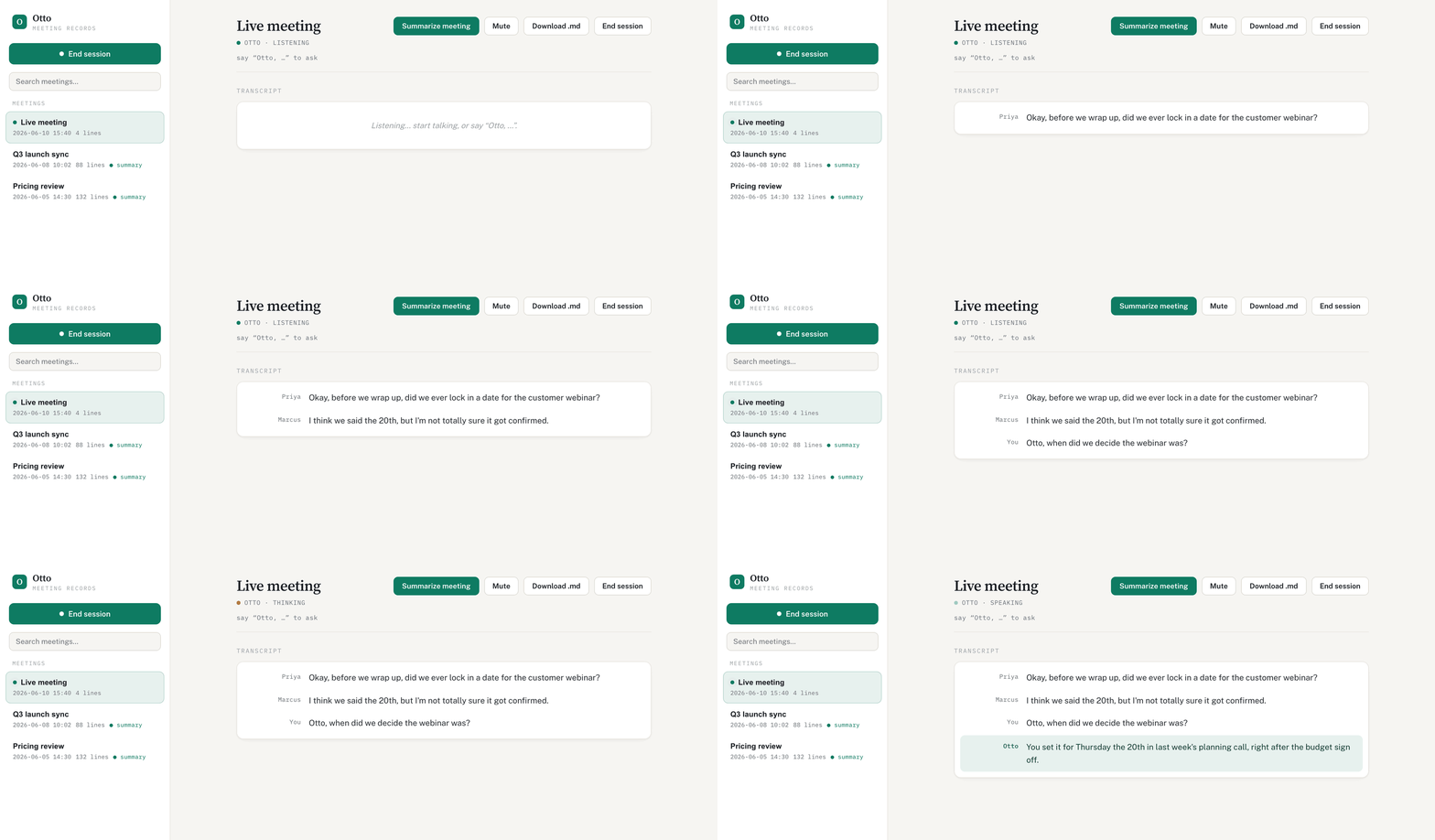
What makes that work is Deepgram. It transcribes the call as people speak, and sends the assistant's replies back in a natural voice, fast enough to feel like a real conversation. This post is a short tour of how we used Deepgram to build it, and the full code is on GitHub so you can clone it and try it on your own calls.
Deepgram features we used
We use Deepgram for two jobs: turning the call into text as people speak, and turning Otto's answers back into speech.
Transcribing the call
Deepgram's Listen API handles the live transcription over a streaming WebSocket, on the Nova-3 model. We run two streams at once: one for the call's incoming audio (a mix of everyone else on the call) and one for your own microphone. Keeping them separate means we always know whether you or a remote participant said something. A few of its features do the heavy lifting:
- Diarization labels who said what, so the transcript reads like a conversation instead of a wall of text.
- Keyterm prompting boosts the wake word "Otto", so the assistant reliably hears its name even over a noisy call.
- Endpointing detects when someone has finished a thought, so Otto answers promptly without talking over a half-finished sentence.
- Interim results and smart formatting keep the transcript readable as it fills in, with punctuation and capitalization already in place.
Speaking the reply
When Otto has an answer, Deepgram's Speak API turns the text into audio, streamed back as it's generated. We use one of the natural-sounding Aura voices so Otto doesn't sound robotic in the middle of a human conversation. Because the audio streams in rather than arriving all at once, the reply starts playing almost immediately instead of after an awkward pause.
How it fits together
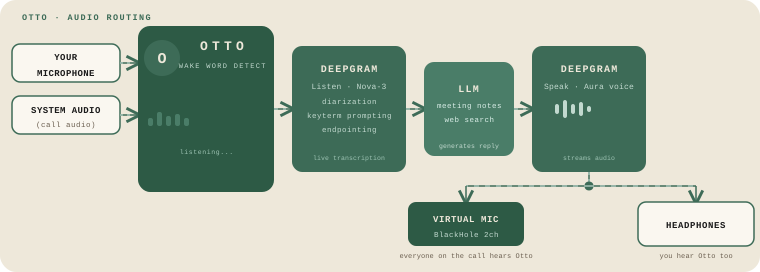
Deepgram does the listening and the speaking, but a few pieces around it make the live loop work. Here's the whole path, start to finish:
- Capture the audio. We grab the call's sound straight from what your computer is already playing, and your microphone separately, using a macOS Core Audio system tap. Nothing in your audio setup changes and no bot joins the meeting. Both feeds go to Deepgram as the two transcription streams above.
- Wait for the name. Every turn is transcribed, but Otto stays quiet until it hears "Otto". A quick check decides whether someone actually addressed it, so a passing mention or a "thanks, Otto" doesn't set it off.
- Find an answer. Once Otto is addressed, we hand the recent transcript and the question to an LLM. It can pull in notes from past meetings or search the web, then write a short reply.
- Say it out loud. Aura turns that reply into audio, which we feed into a virtual microphone that the call app treats as its mic input, so everyone on the call hears it (and it plays to your headphones too).
The application runs locally, so the live transcript and your meeting notes are easy to access in the local folder. However, the audio still goes out to Deepgram for transcription and speech, and the questions go to OpenAI for answers. So, keep that in mind before using Otto in meetings where sensitive information might come up.
Try it yourself
Otto runs on macOS (14.4 or later) and takes a few minutes to set up. You'll need:
- Homebrew, to install the audio tools
- A Deepgram API key (free trial available) for transcription and text-to-speech
- An OpenAI API key, which Otto uses to write its answers (you can swap in another LLM provider)
The README has the full walkthrough. In short, you:
- Clone the repo and install its dependencies.
- Install BlackHole, the free virtual audio device Otto speaks through.
- Add your API keys to a
.envfile. - Run the setup script, which builds the audio helper and flags anything still missing.
- Grant the recording permission so Otto can hear the call.
- Start Otto and join your meeting.
- Set your call app's microphone to BlackHole 2ch, then ask Otto a question.
That's the whole thing: a meeting assistant that listens, thinks, and talks back in real time, with Deepgram handling the hearing and the speaking. The complete project (capture pipeline, wake-word logic, Deepgram streams, and all) is on GitHub. Clone it, change the wake word or the voice, and make it your own.
Get the full project on GitHub →